New Year, new month, new job!

2018 already proved to become an awesome year for me. I became Nutanix Technology Champion again for 2018 and I also decided to change employers. While Detron has been a great employer for over three years it was time to change. My ambitions for what I wanted to do proved to be hard for them to match in jobs to do. I do have to thank them though for the great support I had in these years in which I started blogging, public speaking and managed to enter several community programs like VMware vExpert, Nutanix Technology Champion and more recently the newly announced Liquidware Tech Insiders started by former colleague and Liquidware Pre-sales Director Northern Europe Bas van Kaam.

Starting February first I will be joining TenICT in the Netherlands as VMware Consultant. This company was recently nominated as Most promising Partner of the year for The Netherlands by VMware. They also recently signed a VMware PSO contract so will be taking on PSO jobs as well in the near future. In short it looks like it’s going to be an awesome 2018.

Again I want to thank Detron for the three great years I had with them and I will definitely miss the people and the fun we had!

(Advertorial)Vembu BDR Suite v3.9.0 is now Generally Available and includes Tape Support & Flexible Restores

It is highly important that data needs to be backed up and there should be an effective Disaster Recovery plan in case of data threat or a catastrophe. While data continues to grow and there are number of technology providers who offer better and comprehensive storage techniques to businesses, there has not been an alternative to the concept of backup. While costs are a major factor for businesses, having a steady backup plan to counter data threats and compliant to strict regulatory standards(including the upcoming EU’s GDPR) is necessary. Be it virtual environment backup like VMware Backup, Microsoft Hyper-V Backup or legacy environment backup like Windows Server Backup, Workstation backup, Vembu BDR Suite has been offering Backup & Recovery with their own file-system, VembuHIVE thereby easing the backup process, storage management at an extremely affordable pricing.

Last week, they did announce the release of Vembu BDR Suite v3.9.0 which offers manifold features and enhancements to meet the different needs of Diverse IT environments. According to them, the overall goal of the new version v3.9.0 is to provide advancements in terms of Storage, Security, and Data Restoration.

Vembu BDR Suite v3.9.0 release is distinct because a number of critical features are incorporated for maintaining business continuity and to function effectively for high availability. Here are some of the key highlights of this release:

Tape Backup Support

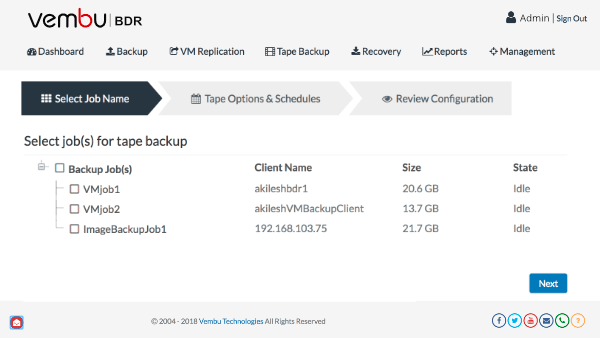
Vembu now provides the popular 3-2-1 backup strategy( copies of backup in 2 medias(Disk and Tape) and 1 backup copy at offsite) to businesses by announcing the support for Native Tape Backup for  Image-based Backups (VMware, Hyper-V, and Physical Windows Servers & Workstations) providing an option for Long-Term Archival and Offsite storage.  Also, Vembu Tape Backup Support makes the DR possible on any physical or virtual environment. Thus Vembu Tape backup is designed keeping in mind the future needs of the ever evolving IT demands.

Quick VM Recovery on ESXi host for Hyper-V and Windows Image Backups

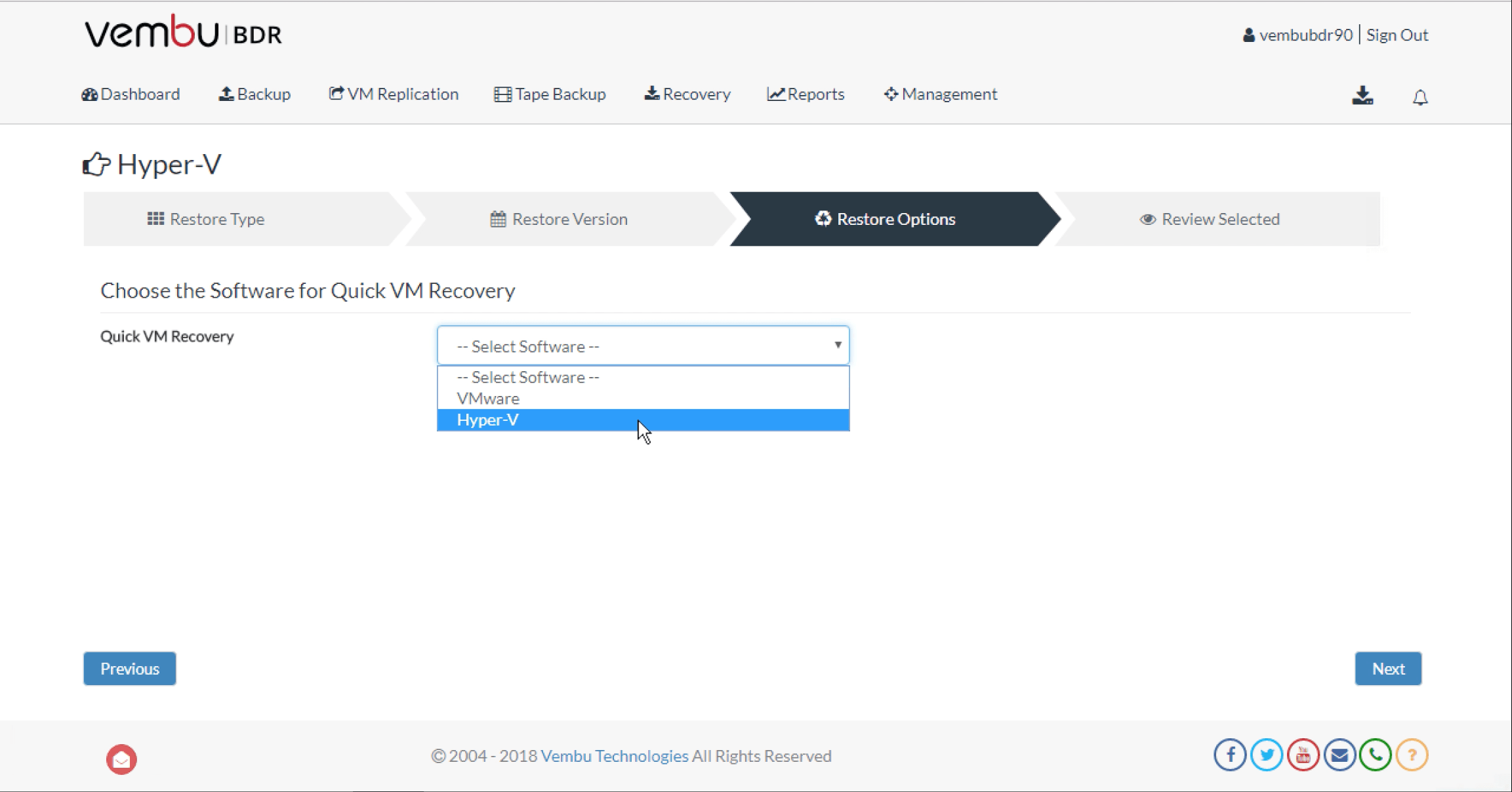
As we speak of data backup, recovery of data is equally important, if not more. While data recovery is crucial, the amount of time taken to restore data decides the business continuity of any organization. In the previous versions, Vembu has provided instant recovery capabilities only for VMware Backups from the GUI. From this release v3.9.0, Vembu makes the instant recovery process much simpler and quicker than before by making the Quick VM Recovery possible on VMware ESXi from Vembu BDR backup server console for all image-based backups(VMware, Hyper-V and Microsoft Windows). Thus, Vembu lowers the Recovery Time Objectives of the organizations and provides quicker data regain and access.

Backup-level Encryption

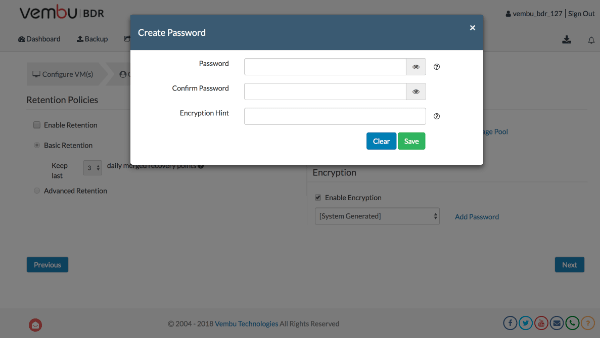
With the newest release, Vembu provides the ability to encrypt the data while creating a backup job. Each backup job that is configured from the distributed agents or through the Vembu BDR backup server is now highly secured through Backup-level Encryption. By using customized passwords, users will now be able to enable additional security for their backup jobs. And the backup data can be restored/accessed only by providing the password. Thus, the data is encrypted and can only be accessed by authorized users. This step is to fight data threats and also to ensure data compliances.

Auto Authorization at Vembu OffsiteDR Server

Offsite data protection is critical in terms of business continuity and is primarily done to keep a backup instance of key business data. To increase data security, Vembu BDR Suite v3.9.0 has Auto Authorization feature at Vembu OffsiteDR server that lets only the registered BDR backup servers to connect to the OffsiteDR server. Vembu BDR servers are authorized through unique registration key generated at the OffsiteDR server. Thus, safeguard all your backup data even if they are transferred to offsite through Auto-Authorization at OffsiteDR server.

Pre/Post backup scripts

Many businesses are in a need to execute certain business logic before or after a backup job. But running these logics manually through scripts is difficult and is not feasible for organizations having multiple backup jobs running in their IT infrastructure. To make this process simpler, Vembu BDR Suite v3.9.0 provides a separate wizard in NetworkBackup, OnlineBackup and ImageBackup clients, where one can add a number of pre and post executable commands/scripts. This helps in automatically executing the added commands/scripts at specific stages based on the configuration and provides the ability to run the custom actions before/after the backup schedules.

Besides all the listed features, Vembu BDR Suite v3.9.0 has few interesting features like Windows Event Viewer Integration along with some Enhancements.

Interested in trying Vembu BDR suite?, Try Now on a 30-days free trial: https://www.vembu.com/vembu-bdr-suite-download/


Multi vlan Network for Horizon View using PowerCLI & API’s

One of the things I wanted to do for a while is to write an API version on how to use multiple dvSwitch portgroups with Horizon View linked clones. With instant clones there’s a gui way to select multiple portgroups but for instant clones the only was to do this was to use the View PowerCLI. This gets installed with the connection server and can only be used from there. What you do is create a file, edit and apply it. Johan has described this process very well on his blog. I decided there had to be a way to do this as well with ‘regular’ PowerCLI & the api’s.

The api explorer shows a property named networklabel for both desktop pools and rds farms. This entry showed me what data I needed to configure. I spent most of my time in gathering all the data for this. As you can see in the script I had to dig rather deep to get all information like hostorclusterid and snapshotid. This information then needs to be put into an object called nics.

The script I made is a working prove of concept and doesn’t contain logic about what portgroups to apply. It just grabs all portgroups that comply with a simple filter. It then grabs the id’s for those and configures them to use for the pool. The script grabs information using the snapshotid but in my testing it’s 100% safe to change snapshots or golden images after that, is just uses that information to know where to configure things.

Something I found during testing is that the maximum amount of labels is respected and spread over all port groups as long as there are labels available. If the system runs out of labels it will continue using only the last configured label! I have tested this on View 6.2 and 7.3.2 with vSphere 6.5 on both methods of configuring the portgroups.

This is the script, it asks for some required information at first. This way you don’t have to put a password in plain text in the script. You can see I have the maxlabeltype and enabled properties pre-configured as LIMITED and $true. If the maxlabeltype is UNLIMITED the composer would stop using any other labels configured after that one and if enabled would be $false that label wouldn’t be used at all..

#-------------------------------------------------
# Linked Clone Configure multiple vlan's
# This script is created to allow a Linked Clone
# Desktop pool to use multiple vlan's
#
# In the past only the 'old' View PowerCLI on the Connection
# broker could be used to accomplish this. Now it's possible 
# from any system running PowerCLI 6.5 or above.
#
# This version replaces all current settings!
# 
# Requires PowerCLI 6.5 or higher
#
# Feel free to use or alter in anyway but please remember the original creator :)
#
# Version 1.0
# 16-01-2018
# Created by: Wouter Kursten
# https://retouw.eu
# Twitter @Magneet_NL
#-------------------------------------------------

$hvservername=Read-host "Which Connection broker do you want to connect to?"
$domain=read-host "Please enter your active directory domain?"
$username=Read-host "Please enter your useraccount"
$password=Read-host -assecurestring "Please enter your password"
$poolname=read-host "What pool to configure?"
$labelfilter=Read-host "What portgroups do you wnat to configure (use * as wildcard i.e. DVVDI*)"
$maxlabels=read-host "How many labels to configure per portgroup?"

#Connect to View Connection broker
Import-module vmware.hv.helper
write-host "Connecting to the connection broker" -ForegroundColor Green
try {
	$hvserver1=connect-hvserver $hvservername -domain $domain -username $username -password $password -WarningAction silentlyContinue -erroraction stop
	$Services1= $hvServer1.ExtensionData
}
catch {
	Write-host "Can't connect to the Connection server please check the credentials." -ForegroundColor Red
	exit
}
$queryService = New-Object VMware.Hv.QueryServiceService
$defn = New-Object VMware.Hv.QueryDefinition
$defn.queryEntityType = 'DesktopSummaryView'
$defn.filter = New-Object VMware.Hv.QueryFilterEquals -property @{'memberName'='desktopSummaryData.name'; 'value' = $poolname}
try     {
        $poolid=($queryService.queryservice_create($Services1, $defn)).results
        }
catch   { 
        throw "Can't find $poolname, exiting" 
        }

$pool=$Services1.Desktop.desktop_get($poolid.id)
$networklabelsall=$services1.networklabel.NetworkLabel_ListByHostOrCluster($pool.AutomatedDesktopData.VirtualCenterProvisioningSettings.VirtualCenterProvisioningData.hostorcluster)
$networklabels=$networklabelsall | where-object {$_.data.name -like $labelfilter}
$NetworkInterfaceCard=$services1.NetworkInterfaceCard.NetworkInterfaceCard_ListBySnapshot($pool.AutomatedDesktopData.VirtualCenterProvisioningSettings.VirtualCenterProvisioningData.snapshot)
$NetworkInterfaceCardSettings=new-object vmware.hv.desktopNetworkInterfaceCardSettings
$NetworkInterfaceCardSettings.nic=$NetworkInterfaceCard.id
$networkLabelAssignmentSpecs=@()

foreach ($networklabel in $networklabels){
    $NetworkLabelAssignmentSpec=new-object VMware.Hv.desktopNetworkLabelAssignmentSpec
    $NetworkLabelAssignmentSpec.enabled=$True
    $NetworkLabelAssignmentSpec.networklabel=$networklabel.id
    $NetworkLabelAssignmentSpec.maxlabeltype="LIMITED"
    $NetworkLabelAssignmentSpec.MaxLabel=$maxlabels
    $networkLabelAssignmentSpecs+=$networkLabelAssignmentSpec
    }
$NetworkInterfaceCardSettings.networkLabelAssignmentSpecs=$networkLabelAssignmentSpecs

$VirtualCenterNetworkingSettings=@()
$VirtualCenterNetworkingSettings=new-object vmware.hv.DesktopVirtualCenterNetworkingSettings
$VirtualCenterNetworkingSettings.nics+=$NetworkInterfaceCardSettings

$desktopService = New-Object VMware.Hv.DesktopService
$desktopInfoHelper = $desktopService.read($services1, $Pool.Id)
$desktopinfohelper.getAutomatedDesktopDataHelper().getVirtualCenterProvisioningSettingsHelper().setVirtualCenterNetworkingSettingsHelper($VirtualCenterNetworkingSettings)
$desktopservice.update($services1, $desktopInfoHelper)

I used a lot of variables and arrays with the names as they are pulled from the data, that explains their long names. Afterwards it doesn’t give any feedback. For this I created a separate script so you can separately check what is configured before or after you change the configuration:

#-------------------------------------------------
# Linked Clone get vlan configuration
# This script is created to check if a linked clone pool 
# has any configured vlan/portgroup configuration
#
# Requires PowerCLI 6.5 or higher 
#
# Feel free to use or alter in anyway but please remember the original creator :)
#
# Version 1.0
# 16-01-2018
# Created by: Wouter Kursten
# https://retouw.eu
# Twitter @Magneet_NL
#-------------------------------------------------

#region variables
$hvservername=Read-host "Which Connection broker do you want to connect to?"
$domain=read-host "Please enter your active directory domain?"
$username=Read-host "Please enter your useraccount"
$password=Read-host -assecurestring "Please enter your password"
$poolname=read-host "What pool to check?"

#endregion

#region Connect to View Connection broker
Import-module vmware.hv.helper
write-host "Connecting to the connection broker" -ForegroundColor Green
try{
    $hvserver1=connect-hvserver $hvservername -domain $domain -username $username -password $password -WarningAction silentlyContinue -erroraction stop
    $Services1= $hvServer1.ExtensionData
}
catch{
    Write-host "Can't connect to the Connection server please check the credentials." -ForegroundColor Red
    exit
}
    
#endregion

#regio gather and display data
$queryService = New-Object VMware.Hv.QueryServiceService
$defn = New-Object VMware.Hv.QueryDefinition
$defn.queryEntityType = 'DesktopSummaryView'
$defn.filter = New-Object VMware.Hv.QueryFilterEquals -property @{'memberName'='desktopSummaryData.name'; 'value' = $poolname}
try     {
        $poolid=($queryService.queryservice_create($Services1, $defn)).results
        }
catch   { 
        throw "Can't find $poolname, exiting" 
        }

$pool=$Services1.Desktop.desktop_get($poolid.id)
$labels=($pool.automateddesktopdata.virtualcenterprovisioningsettings.VirtualCenterNetworkingSettings.nics).NetworkLabelAssignmentSpecs
if (!$labels){
    write-output "No configured portgroup(s) or $poolname not found."
}
else{
    $output=@()
    foreach ($label in $labels){
        $output+= New-Object PSObject -Property @{
            "Labelname" = get-hvinternalname $label.networklabel;
            "Enabled" = $label.Enabled;
            "Labeltype" = $label.maxlabeltype;
            "Max_labelcount" = $label.maxlabel;
        }
    }
$output | select-object Labelname,Labeltype,Max_labelcount,enabled
}

And the result:

In the end the script looks and is way more complex than the ‘old’ way to assign multiple vlans. On the other hand it is way more flexible to use in any scripting you are already using for the automation of your Horizon environment.

As always both scripts can be found on Github here and here.

Finding Horizon View local entitlements using PowerCLI

Intro

In a previous post i mentioned that finding the entitlements for a user from the Horizon side of things can be a bit of a hassle. If only active directory groups are used its dead easy: just use the Active directory commands for those groups. If the groups are used for multiple pools and if you have assigned desktops things get a bit more complicated. For now I will only concentrate on the local pod without global entitlements.

getting that info

To get started the vmware.hv.helper module has the get-hventitlement command. As almost always a very useful one but it has some flaws. First it requires full domainname\username or username@fulldomainname.

For example

get-hventitlement -user magneet.lab\user1

or

get-hventitlement -user user1@magneet.lab

Both work but

get-hventitlement -user magneet\user1

gives this message: Get-HVEntitlement: No entitlements found with given search parameters.

At least

get-hventitlement -user user1

If you add the -type group to this command you get all group entitlements

gives an error message that the -user argument does not match the “^.+?[@\\].+?$” pattern. With this last one you at least get an error so you know where to look but not displaying any entitlements is an issue for me.

So, back to the results of these commands, I have assigned the user user1 the following rights

  • Pool04 directly and by using a group
  • directly on a single desktop in pool04.
  • Pool01 only by group.
  • Paint rds app by group
  • Calculator rds app direct
  • Wordpad rds app by both group & directly

When using the get-hventitlement without anything else it doesn’t seem to show a lot of usable things

get-hventitlement -user user1@magneet.lab

If you put this between brackets followed by a period and one of the properties a bit more info is shown.

(get-hventitlement -user user1@magneet.lab).base

Some information about the user, not very usable the session data property gives some information about current sessions (none at the moment)

With the localdata property it looks like we hit the motherload jackpot thingy

(get-hventitlement -user user1@magneet.lab).localdata

Very good, a lot of id’s so what can we do with those? For now I will put this into $entitledids.

$entitledids=(get-hventitlement -user user1@magneet.lab).localdata

I read something about get-hvinternalname when checking out the module, sounds usable.

get-help get-hvinternalname -examples

Ah, so this needs an entityid as input, a machine is an entity so let’s try it. This might need a foreach though because the output gave machines and not machine.

foreach ($Entityid in ($entitledids.machines)){get-hvinternalname $Entityid}

Damn, that’s not usable, let’s double-check with the other id types

foreach ($Entityid in ($entitledids.desktops)){get-hvinternalname $entityid}
foreach ($Entityid in ($entitledids.desktopuserentitlements)){get-hvinternalname $entityid}
foreach ($Entityid in ($entitledids.aplicationuserentitlements)){get-hvinternalname $entityid}
foreach ($Entityid in ($entitledids.applications)){get-hvinternalname $entityid}

The ones we need are readable, couple of them not but I don’t those will be missed.

The missing machine name is actually easy to solve by doing an api call:

foreach ($Entityid in ($entitledids.machines)){($services1.machine.machine_Get($Entityid)).base}

Conclusion

Because this is rather easy to use and since I didn’t have a direct use case for that I decided not to create a complete script. With get-hventitlement, get-hvinternalname and maybe an api call here or there it’s very easy to pull the information about which account or groups have what rights. To see if a user belongs to a group can easily be done with any of the multitude of scripts for that here’s a good example of those.


Adding manual desktops in Horizon View and assigning them using Powercli

A while ago I received a question from Geoffrey O’Brien if I knew how to add a desktop and assign it using PowerCLI. I started building this using the api’s and after a lot of hours, cussing, swearing running into weird problems I actually got it working. When I was busy writing that blog post and wanting to add this to the vmware.hv.helper module I found out that both functions had already been added back in July! I just ignored, or better, forgot about the module for a while because at first it lacked a lot of options.

Key ingredients to do this are add-hvdesktop and set-hvmachine commands. For this post I will assume that the user is already entitled to the pool. This is something that can be checked but because of some ‘things’ it will be a separate post. Please be aware that if you combine these commands in a single script that there needs to be some time for the connectionserver to actually add the desktop.

First check if the system isn’t already registered with this this pod:

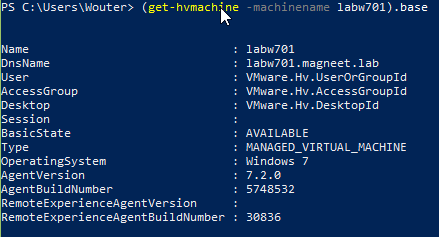
get-hvmachine -machinename MACHINENAME

If the desktop is already added somewhere and you know the pool it can be removed with the api (issue logged to create remove-hvmachine here)

$services1.desktop.Desktop_RemoveMachineFromManualDesktop((get-hvpool -poolname POOLNAME).id, (get-hvmachine -machinename MACHINENAME).id)

Since the desktop can’t be found yet it can be added by:

add-hvdesktop -poolname POOLNAME -machines labw701

Did you notice the extra S in the -machines part in the command? Multiple machines can be added by separating them with a comma.

To assign the user to the machine things get a it more complicated. We need to set an advanced option for that with set-hvmachine. Why an advanced option? It seems like assigning a single machine isn’t considered an entitlement! The module has no option to grab the horizon userid for you so we need to use the api’s for that (request to add it has been made here)

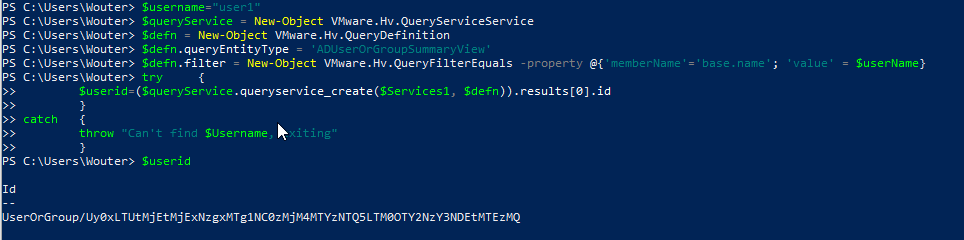
$username="USERNAME"
$queryService = New-Object VMware.Hv.QueryServiceService
$defn = New-Object VMware.Hv.QueryDefinition
$defn.queryEntityType = 'ADUserOrGroupSummaryView'
$defn.filter = New-Object VMware.Hv.QueryFilterEquals -property @{'memberName'='base.name'; 'value' = $userName}
try     {
        $userid=($queryService.queryservice_create($Services1, $defn)).results[0].id
        }
catch   { 
        throw "Can't find $Username, exiting" 
        }

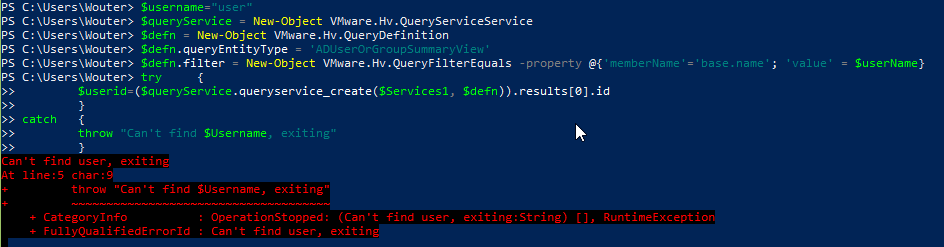
the username has to be exact samaccountname from your active directory otherwise it will not be able to find the user.

so now we do have the userid the base.user needs to be updated.

get-hvmachine -machinename MACHINENAME | set-hvmachine -key base.user -Value $userid

before:

the command:

After:

And since the user has been assigned something now it has it’s own userorgroupid as you can see and that can again be check with the api’s. First put the userorgroupid into a variable and then use that against the aduserorgroup service.

$resultuserid=(get-hvmachine -machinename MACHINENAME).base.user
($services1.AdUserOrGroup.AduserOrGroup_Get($resultuserid)).base

This is the script you can use as a base:

$username="username"
$poolname="Poolname"
$machinename="machinename"
$connectionserver="connectionservername"

$hvserver1=connect-hvserver $connectionserver
$Services1= $hvServer1.ExtensionData

$queryService = New-Object VMware.Hv.QueryServiceService
$defn = New-Object VMware.Hv.QueryDefinition
$defn.queryEntityType = 'ADUserOrGroupSummaryView'
$defn.filter = New-Object VMware.Hv.QueryFilterEquals -property @{'memberName'='base.name'; 'value' = $userName}
try     {
        $userid=($queryService.queryservice_create($Services1, $defn)).results[0].id
        }
catch   { 
        throw "Can't find $Username, exiting" 
        }

add-hvdesktop -poolname $poolname -machines $machinename

start-sleep -s 10

get-hvmachine -machinename $machinename | set-hvmachine -key base.user -Value $userid

As always the most up to date version of the script can be found on Github.


[Advertorial]Vembu v3.9.0 is almost here

Introduction

Last year I wrote a couple of posts about Vembu, somewhere in the next couple of weeks they are expecting to release version 3.9.0 of their Backup Suite. They have some very new features to be added with this version like Windows Event Viewer integration. This gives the administrator a way to check if backups have succeeded without having to logon to the backup server, besides that it also provides an easy way with almost any monitoring product to make an status for the backups.

For those of you who still require data to be written to tape Vembu will also add that function trough the Vembu console. Besides VMware ESXi backups you will be able to quick recover Hyper-V Machines and Disk Image backups as well. Another important addition is the encryption of backups with AES-256 bit encryption, just make sure to safeguard that key or you might not ne able to recover anything.

Overview of announced changes:

Tape Backup Support

Vembu extends its support to native tape backup through the Vembu BDR console. You can
utilise the best known 3-2- 1 backup strategy of having 3 copies of backup data in 2 different
media and 1 off-site location for an efficient DR plan. This secondary backup approach will help
you to archive the image based backups in both virtual and physical environments like VMware,
Hyper-V and Windows Servers and recover them in multiple formats like VHD, VMDK,
VHDX, VMDK-Flat and RAW.

Auto Authorization at Off-site DR

Enabling the auto authorization feature will allow only the authorized Vembu BDR servers to get
connected with Vembu OffsiteDR servers (Replication) using the registration key.

Quick VM Recovery on ESXi for Hyper-V and Disk Image Backups

Instant recovery of backed up data on VMware ESXi is now made available for both the Hyper-
V VMs and Windows Servers backup jobs for an effective Disaster Recovery. This recovery of
the virtual machines happens in a matter of seconds by booting the backed up machine directly
from the backup storage repository, from where all the files, folders and applications can be
accessed.

Windows Event Viewer Integration

All the events of the Vembu BDR, Off-siteDR & agents like information on critical, warnings
and major events are updated in the Event Viewer of Windows Servers when enabled for better
management.

Advanced Backup level encryption for all agents

Users will be able to configure AES-256 bit encryption for all their backup jobs of VMware,
Hyper-V, Disk Image through their customized passwords using corresponding password hints
as well.

OffsiteDR Server retentions using Vembu Network Backup

OffsiteDR retention policies is now available for the Network Backup plugins too, like the image
based backups of VMware, Hyper-V and Disk Image backups at the too.

Listing of files & Folders in aciTree structure

The listing of files and folders while configuring backups on a Network Backup plugin is now up
with the aciTree structure for easy and quick navigation.

Pre/Post backup scripts for all Network & Image Backup clients

This feature provides the ability to configure running custom actions before and after the
execution backup schedule. The custom actions may include running an application using some
script files.

AngularJS conversion of UI for Vembu OnlineBackups

The overall UI of Vembu OnlineBackup is improved for better performance like the current
Vembu BDR and Off-siteDR.

Update of consumed space on the Vembu Portal

Based on the display of the consumed space of Vembu Online Backup and SaaSBackup plugins,
the customer will be able to allocate and purchase further cloud storage post purchase and
upgrade.


Goodbye 2017, hello 2018        

While I already finished my first blogpost of the year I decided it was time for me to write another one. The kind that I usually avoid like a plague to write: a post looking back at 2017 and forward to 2018. For me these kinds of posts are on the same level as stupid lists: I frigging always hated creating and evaded them! Essentially though my monthly flings posts are lists so why wouldn’t I write a the looking back & forward posts as well?

2017

Presenting

This mentality is exactly something what I started doing in 2016 and certainly continued in 2017: challenging myself to new things. The presenting bit I had already introduced myself to in 2016 but last year I also did my first presentation at a VMUG not in my own country but I travelled to Germany for their UserCon to present three of my favorite VMware flings. After the short vBrownbag at VMworld US in 2016 this was only my second time presenting in English. It also was my first time to exactly hit the spot timewise in the 30-minute timeslot I had.  Luckily the base for the presentation was good since I had done it at the Dutch VMUG UserCon (sorry it’s in Dutch) a couple of months earlier together with my good friend Hans Kraaijeveld. I had ten extra minutes though so instead of showing the slide deck I decided to show the tools instead of boring screenshots. Next time I just need to improve on some things and make a script on beforehand (thank you Johan for the Feedback) on what to do, but since I decided to change this the evening before in my hotel room preparation was suboptimal.

Besides the vmug’s I also managed to find me a spot on the vBrownbag schedule for VMworld Europe. I can’t really say that my presentation was a success, I was tired and just didn’t get into the proper flow for it. I did pick up some extra essential experience doing it though. Beside my own presentation I also had lots of fun on the vExpert daily broadcast.

Community

In 2017, I have started being more active on Reddit & VMTN. Specially reddit can be a flamewar every now and then but there are very decent topics and replies as well. On vmtn it’s really hit and miss about quality, some are decent posts but lots also prove that the ts (topicstarter) totally didn’t do their homework or have had any experience with the product they are trying to use.

The most fun community wise I had at the VMware Code Hackathon at VMworld EU. While our project didn’t go smoothly we had lots of fun and everyone learned at least a couple of things. Next time I will just make sure we have our own infrastructure available to us. And those hippie shirts simply rule.

VMworld itself was an awesome community event for me as well. While I still visited some sessions the hanging around with other vExperts and bloggers made it again an awesome event for me. At the beginning of November, I also visited the Nutanix .Next event and while there where less people over there that I knew I made some friends right away (or not Dugi?) and kept having fun with those selfies after I got some comments on looking grumpy at the first one. It was also good to finally meet some of the other NTC’s.

Events

2017 was a year with lots of awesome events for me. I visited not only the Dutch and German VMUG but also managed to squeeze the Belgium VMUG in my schedule was well. Then again VMworld EU and Nutanix .Next and in December I also visited the inaugural Dutch vEUC Techcon that had lots of great content.

Learning

In the learning zone, I managed more then I planned for in the beginning of 2017. I had agreed with my manager that it would be a quiet year for me an oh boy I did not keep myself to that agreement. First, there was the Certification ME work I did and got the certifications for: vcp-dcv 6.5, vcap7-dtm design and the vca-dbt exam. Ok this is not learning and doing the exam but by creating and checking the questions one can learn just as much in my opinion.

I did two actual exams in 2017: vcp7-dtm and vcap6-dtm deploy. The first one I passed and the 2nd one I sadly failed on, since it was my first vcap deploy I didn’t expect anything else and overall it was a good experience in preparing for the next one. Something certainly needed is an HD monitor and proper amounts of coffee in advance because the you need to stay sharp and time will be an issue.

As side projects in the learning department I also was active as content checker for three Packt videos and one book:

  • Videos
    • Learning VMware App Volumes
    • Designing and Deploying VMware Horizon View 7 and
    • Managing a Horizon 7 environment
  • Book
    • Mastering vSphere 6.5

Again, I learned a lot by working at these projects but they are very time intensive so I don’t know how eager I would be for coming projects.


2018

So, what am I expecting for 2018 personally? Hopefully I will be allowed again to speak at the Dutch VMUG Usercon, I proposed one personal session in the CfP and one session together with Hans Kraaijeveld. Also, I would love to extend my personal session and build it out to a VMworld quality and be able to deliver it there as well. Besides VMworld I would like to visit the BE vmug and Nutanix .Next also again this year.

In the community, I want to keep at least as active since my Nutanix NTC is already extended to 2018 and hopefully I will also receive vExpert again in 2018. The vExpert & NutanixNTC slack channels simply rock. Both have awesome vibes with lots of people always eager to help you with any questions you ask.

I only have one real learning goal so far for 2018 and that is to pass the vcap7-dtm deploy exam. Sadly, it hasn’t been released yet but that doesn’t say I can’t prepare for it either. My ultimate goal would be to become vcdx but that’s something I will only start working on this year, don’t expect me to submit soon. As something for fun, I might try my hands on the nsx certifications even though I am not a networking person or maybe something from Amazon since a lot of VMware admins seem to be heading that way as well.


For the rest, I have only this to add: Happy New Year and have an awesome 2018!


The VMware Labs flings monthly for December 2017

Another month, another year, welcome to 2018 where I will continue this monthly series about updated and new VMware labs flings. This month there where two new fling: The Cross vCenter Workload Migration Utility and Simple Natural Language Processing for iOS plus three updated flings: VMware OS Optimization Tool, vSphere HTML5 Web Client, and last but not least the App Volumes Backup Utility. Some familiar faces and some not so familiar let’s see what changed:

[sta_anchor id=”xvcenterutil” /]

Cross vCenter Workload Migration Utility

The first Fling is the brand new Cross vCenter Workload Migration Utility, previously one had to go command line to move VMs across vCenter servers but now the less CLI inclined people (or lazy people like me sometimes) can do it via a gui. This can be done within the same SSO domain but also across SSO domains. WIlliam Lam also wrote a good post about it.

Key Features

  • Completely UI-driven workflow for VM migration
  • Provides REST API for managing migration operations
  • Works with vCenter not a part of the same SSO domain
  • Support for batch migration of multiple VMs in parallel
  • Supports both live as well as cold migration of VMs
  • Performs storage vMotion, not requiring shared storage
  • Flexible network mappings between source and destination sites

[sta_anchor id=”sios” unsan=”SiOS” /]

Simple Natural Language Processing for iOS

To be honest: i have no clue what Simple Natural Language Processing for iOS is for, looks like something to use in your code to talk to the voice processing in iOS without cost and privacy concerns for using cloud based solutions.

Simple Natural Language Processing for iOS provides developers with a convenient framework for integrating Natural Language Processing (NLP) into their iOS Apps. When the developer provides a set of training phrases, Simple NLP will use Naïve Bayes Classification to predict the intent of an unfamiliar phrase and extract parameters such as a person’s name and dates.

While numerous cloud based solutions already exist to provide similar functionality, they may have associated cost and privacy concerns. With Simple NLP for iOS, your data won’t be sent to a server or cloud service for prediction. All NLP functionality is constrained to the device and processed natively.

We hope that you will find this Fling easy to use and beneficial to your project.

[sta_anchor id=”osot” unsan=”OSOT” /]

VMware OS Optimization Tool

Just a short update for the OSOT this month, more tools have been coming out that can do this but this one is stall my favorite OS Optimizer.

Changelog

December 14, 2017

  • Template update. Detailed change log for each template is in the online version of each template (accessed from Public Templates tab)

[sta_anchor id=”appvol” /]

App Volumes Backup Utility

As far as I know this is still the only way to backup those Appstacks and writable volumes and using a fling for that might be a risk.

Changelog

Version 2.0

  • Updated to use only PowerCLI to connect to vCenter/vSphere. Previous versions used the vSphere SOAP API along with PowerCLI which locked the application to a specific version of PowerCLI. Versions 2.0 and later of this application will work with any version of PowerCLI (6.0 and later). This change improves the speed of enumerating vCenter items
  • Added additional checks for PowerCLI and PowerShell
  • Additional optimizations and minor bug fixes

[sta_anchor id=”vspherehtml5″ /]

vSphere HTML5 Web Client

Like always the HTML5 Web Client received multiple updates, two to be exactly in december.

Changelog

Fling 3.31 – Build 7343373

New Features

  • Performance charts counter selection can be persisted. The counter selection are persisted per object type. The data is persisted in browser local storage.

Bug Fixes

  • Resume fault tolerance in manual DRS cluster will show DRS recommendations.
Fling 3.30 – Build 7271216

New Features

  • View License assets (Host/Cluster/Solutions)(Read-only)
  • License and Products features details
  • VC and Host License details (Configure > Licensing)
  • VDS health checks

Improvements

  • Warning dialog when the file download is blocked by the Browser’s Pop-up blocker

Bug Fixes

  • Issue where host advanced settings filter doesn’t work in edit is resolved.

get-hvmachine only finds 1000 desktops

Edit: this is supposed to be fixed already in the vmware.hv.helper module so make sure you have the latest version of it. I was late in writing it out :@

A while ago I wanted to list all desktops in use from one of our Connection servers. After several tries I kept having issues in finding some of the desktops. This prompted me to do a count on the amount with

(get-hvmachine).count

and it turned out that I received only a 1000 results while I had over 1100+ in that pod. After talking to some people in the VMware Code slack it turned out that this is a limit in the query system that the View API uses. This was verified by running the query myself instead of using the module. Sadly I forgot to make screenshots when I did this and don’t have access to this environment anymore.

$hvServer1 = Connect-HVServer -Server CONNECTIONSERVER
$Services1= $hvServer1.ExtensionData
$queryService = New-Object VMware.Hv.QueryServiceService
$defn = New-Object VMware.Hv.QueryDefinition
$defn.limit= 10000
$defn.maxpagesize = 10000
$defn.queryEntityType = 'MachineNamesView'

$QueryResults = $queryService.queryservice_create($Services1, $defn)
$queryresults.count

Despite setting the maximums to 1000 or not even filling them I always ended up with 1000 max. After again going over this on Slack I decided to create a do until to pull these results with each time a maximum of 1000 results until no results are received..

$hvServer1 = Connect-HVServer -Server CONNECTIONSERVER
$Services1= $hvServer1.ExtensionData
$queryService = New-Object VMware.Hv.QueryServiceService
$offset=0
$defn = New-Object VMware.Hv.QueryDefinition
$defn.limit= 1000
$defn.maxpagesize = 1000
$defn.queryEntityType = 'MachineNamesView'
$output=@()
do{
$defn.startingoffset = $offset
$QueryResults = $queryService.queryservice_create($Services1, $defn)
if (($QueryResults.results).count -eq 1000){
$maxresults=1
}
else {
    $maxresults=0
}

$offset+=1000
$output+=$queryresults
}
until ($maxresults -eq 0)

($output.results).count

For this I did make a screenshot:

As you see it kind of stacks the results but the count is ok so I should be able to incorporate this into other scripts.

The VMware Labs flings monthly for November 2017

A couple of days late this time but here is your monthly dose of Flings! No new ones but seven flings have been updated by VMware labs this month. The Horizon Toolbox, vSphere HTML5 Web Client and the ESXi Embedded host client make their almost monthly appearances while at least two other received updates in a long time: Cross vCenter Vm Mobility – CLI and the VMFork for pyVmomi. The HCIBench and Desktop Watermark also received an update.


ESXi Embedded Host Client

By now we should all be using the embedded host Client unless you are forced by greater powers to run on some ancient version of ESXi.

Version 1.24.0 build 7119706 (Fling 19) – November 13, 2017

Minor features and bugfixes
  • GeneralFix failure to deploy OVF/OVA image with disks attached to multiple disk controllers
  • Address race condition when adding new Network Adapter to virtual machine
  • Allow datastore browser to browse VVOL datastores
  • Address timeout issue in datastore browser when client receives unknown datatypes from host
  • Address issue disabling autostart for a VM
  • Allow downloading of flat VMDK files in datastore browser
  • Show the correct VMware Tools version string in VM summary
  • Show pager in VM editor when VM has many hard disks
  • Support OVF properties with pre-defined values, showing dropdowns
  • Allow modifications of root user’s permissions
  • Support for selecting dependent PCI devices when enabling passthrough
  • Other minor bug fixes


vSphere HTML5 Web Client

Like always the HTML5 Web Client received multiple updates in November so the changelog is rather long.

Fling 3.29 – Build 7157335

New Features

  • Configure traffic filtering and marking rules on distributed port groups
  • Export and import distributed switches and distributed port groups

Improvements

  • Configure the policies of distributed port groups inside the New Distributed Port Group wizard

Bug Fixes

  • Fixed an error when trying to edit the settings of VMs with failed installation or update of the VM tools
Fling 3.28 – Build 7110681

New Features

  • Configure advanced CPU Identification Mask
  • Select PVRDMA adapter type for a VM network

Improvements

  • Thanks to the fling users who gave the steps to replace the certificates for FAMI UI running at port 5490, added these instructions to v4 of “Create a new certificate for a HTML5 client fling” document

Bug Fixes

  • Licensing views should be visible for 6.0 VC/PSCs
Fling 3.27 – Build 7055108

New Features

  • Popout the Datastore File browser
  • License Details
  • View License VC assets (Read-only)

Improvements

  • Set license name in the Add License workflow

Known Issues

  • License UI might not work against 6.0 VCs, in particular Windows VCs/PSCs.
  • If you see error in the vSphere Client (HTML5) similar to this – ‘getHostIsAssignLicenseActionAvailable’, then you can resolve this error by following below steps:
    • If vSphere Client (HTML5) Fling appliance is pointed to a vCenter Server Appliance (VCSA), then you should reregister the fling appliance by logging in to FAMI UI (or by running the config-ui CLI). Refer the instructions document to follow the steps for configuring Fling appliance for VCSA.
    • If vSphere Client (HTML5) Fling appliance is pointed to a Windows vCenter Server, then reregister by downloading latest server-configure.bat from the Download section of this website. Refer the instructions document to follow the steps for configuring Fling appliance for Windows vCenter Server.


VMFork for pyVmomi

This fling has been around for a while and if you ever wanted to fork your VM’s without having to study PowerCLi then this one is for you. It has a warning that it only supports vSphere 6.0 and 6.5 and no newer releases but hey there are none yet so please use it if you like.

Changelog

Version 1.0.3

  • Fixed a bug that prevented CreateChildSpec from being referenced in versions of 6.5 of pyVmomi
  • Updated the requirement to include pyVmomi 6.5 only, up from 6.0, due to a dependency issue

Version 1.0.2

  • Bug fixes & Improvements


Desktop Watermark

Want to make sure screenshots will show that it is your Image being used then the Desktop Watermark fling can be the tool of choice. It can be used for auditing or exhibition purposes or any other way you like. And yes that type in the changelog is a straight copy/paste from the site.

Changelog

Build 1027

Addition

  • Password protection for the configuration & uninstllation


Cross vCenter VM Mobility – CLI

Ever needed to migrate or clones VM’s form one vCenter to the other while there they are not linked? then the Cross vCenter VM Mobility – CLI might be a good tool in your toolbox.

Changelog

Version 1.4

  • While migrating multiple vms with destination network option, only one vm used to get migrated.This issue has been fixed.


HCIBench

Need to benchmark a Hyperconverged Infrastructure? VDbench is one of the tools to use and VMware labs create the HCIBench to automate this tool. It received a couple of updates since my last post about it.

Changelog

Version 1.6.5.1

  • Enhanced IP segment selection
  • Set open file limit to 4096
  • Updated vm-tools to the latest version
  • Bug fixes

Version 1.6.5

  • Enhanced 95th percentile calculation.
  • Added Curve and Multi Run calculation.
  • Added SSH Service validation.
  • Replaced DHCP Service with Static IP Service.
  • Added IP conflict check.
  • Fixed bunch of bugs.
  • Change the default client VM RAM from 4GB to 8GB


Horizon Toolbox

Being an EUC guy myself this is one of my favorites. The Horizon Toolbox adds some very good tools for servicedesk and operations employees.

Changelog

2017 Nov 30

  • Add a new “Export” button to the clients table